
Last updated: June 26, 2020
You can manually upload files and attach them to your contact, company, and deal records to provide helpful context.
Please note: when you send one-to-one emails in HubSpot or log an email using HubSpot Sales, any non-inline attached files will automatically be added to the Attachments section of the record. Non-inline attached files included in logged replies will also be added to the Attachments section of the record. Check out this article on inline and non-inline attachments.
Add an attachment
- In your HubSpot account, navigate to your contacts, companies, deals, or tickets.
- Click the name of the contact, company, or deal record.
- In the right panel, scroll down to the Attachments section.
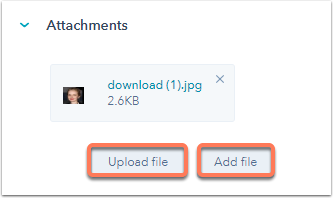
- Click Upload file to upload a file from your computer or click Add file to select a previously uploaded file.
Remove an attachment
- In your HubSpot account, navigate to your contacts, companies, deals, or tickets.
- Click the name of the contact, company, or deal record.
- In the right panel, scroll down to the Attachments section.
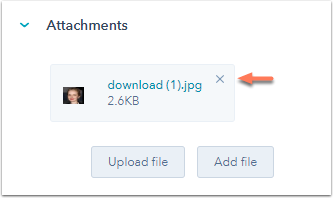
- Click the X on the upper right of the attachment to remove it.
- In the dialog box, click Remove.